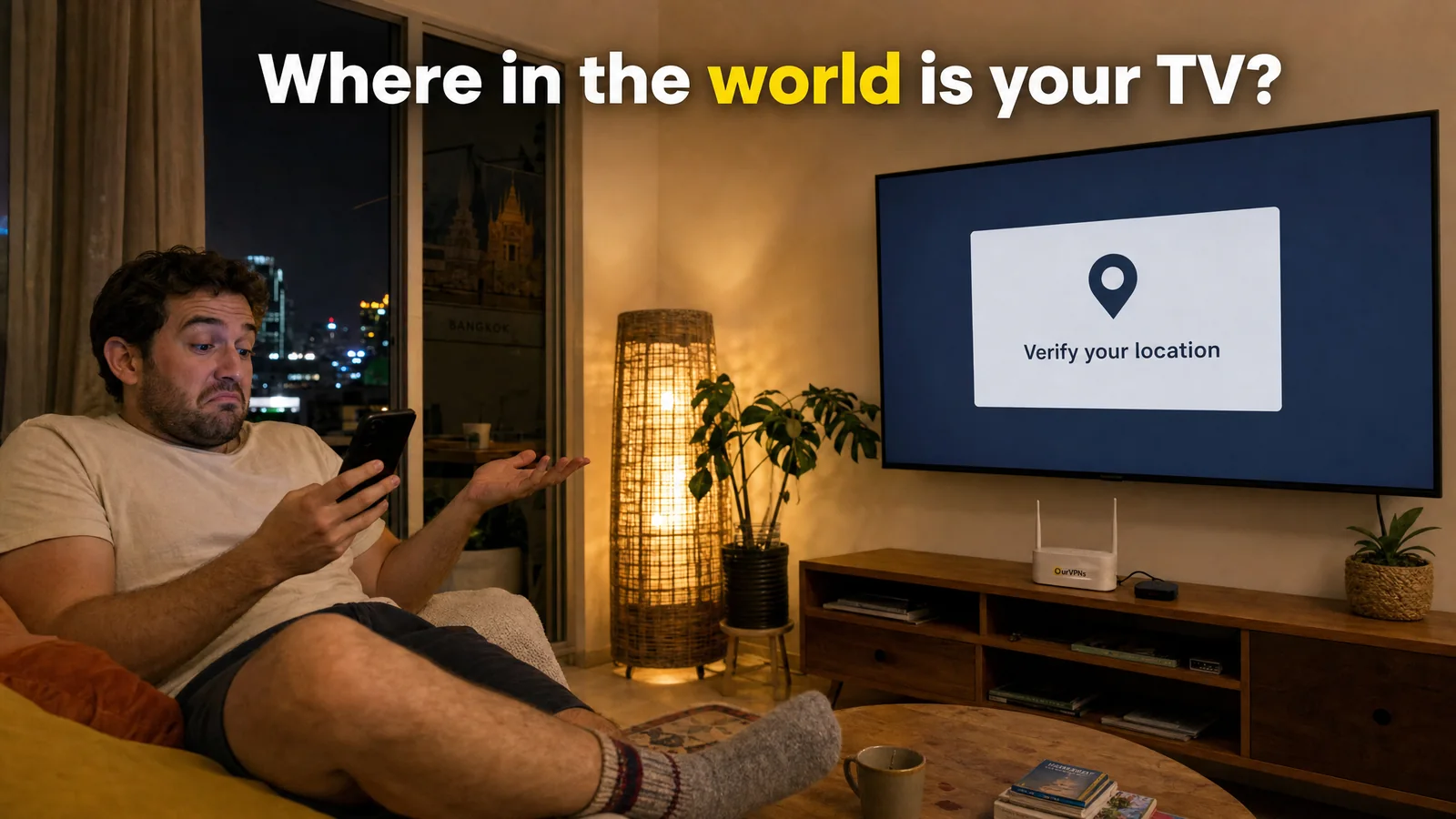
YouTube TV Verify Location Not Working? Here's the Fix
You sit down, grab the remote, and YouTube TV greets you with the one screen nobody wants: verify your location. You open tv.youtube.com/verify on your phone, tap allow, wait, and... nothing. Or worse, it says you're somewhere you are very much not.
Good news: this is one of the most fixable errors in streaming. Most of the time it comes down to one of five things, and you can work through all of them in about ten minutes. If you're traveling, there's a separate section further down, because that one plays by different rules.
Why YouTube TV keeps asking you to verify your location
YouTube TV sells local channels, so it has to know where you are. It keeps track of two places. Your home area is the ZIP code you signed up with, and it decides your local networks and what you can record. Your current playback area is wherever you happen to be watching right now.
When the app can't match those two up with confidence, it asks you to prove where you are. According to YouTube TV's own help page on home areas, smart TVs send you to a phone or browser to finish that check, and the check uses your device's location. So the TV asks, but your phone answers.
The usual triggers:
Your phone has location access turned off for the browser or the YouTube TV app.
Your phone and your TV aren't on the same Wi-Fi network.
Your internet provider's IP address points to the wrong city, which is common with 5G and fixed wireless home internet.
A VPN, proxy or ad blocker is running somewhere on your network.
You haven't watched from your home area in a while.
Fix 1: Give your phone permission to share its location
This is the culprit more often than anything else. The verify page can't read your location if your phone won't share it.
On iPhone: go to Settings, then Privacy & Security, then Location Services. Make sure Location Services is on, then find Safari Websites (or the YouTube TV app) and set it to While Using. Turn on Precise Location too. Then open tv.youtube.com/verify in Safari and tap Allow when it asks.
On Android: open Settings, then Location, and make sure it's on. Check that Chrome (or the YouTube TV app) has location permission under its app settings, with precise location allowed. Then visit tv.youtube.com/verify in Chrome and allow access.
If you tapped Don't Allow at some point, the browser remembers that. Clear the site data for tv.youtube.com, or open the page in a fresh private tab, and try again.
Fix 2: Put your phone on the same Wi-Fi as your TV
If your phone is on cellular data while the TV is on your home Wi-Fi, YouTube TV sees two different connections and gets suspicious. Turn off mobile data for a minute, join your home Wi-Fi, and run the verify step again. It sounds too simple to matter. It matters.
Fix 3: Update your current playback area on the TV
On most smart TVs and streaming sticks, open YouTube TV, go to your profile picture, then Settings, then Location, then Current playback area, and choose update. The TV will show a short link or code and ask you to finish on your phone. Do that with the phone on the same Wi-Fi, location turned on, and the update usually goes straight through. Watching on a Fire TV Stick abroad? Our guide to putting a VPN on a Fire TV Stick explains which models can run one.
On a computer, open tv.youtube.com, go to Settings, then Location, and select Update next to Current playback area. Your browser will ask for location access. Say yes.
Fix 4: Turn off anything that hides your connection
YouTube TV's help page is blunt about this one: while you're connected to a VPN or proxy, you can't stream YouTube TV. That includes VPN apps on your phone, privacy browser extensions, some ad blocking DNS setups and even VPNs running on your router.
The catch is that a regular VPN app connects you through a data center, and streaming services can spot those addresses from a mile away. We wrote a whole explainer on why streaming apps block VPNs but not home connections, if you want the nerdy version.
Fix 5: Check what your IP address says about you
If you did everything above and YouTube TV still swears you live two states over, your internet provider is probably the reason. Many 5G home internet and fixed wireless services route your traffic through a hub in another city, and location databases believe the hub, not you. We explain why this happens in why your IP address shows the wrong city.
What helps: restart your modem or router so you get a fresh IP address, then verify again on your phone over Wi-Fi with location on. If it keeps happening, contact YouTube TV support and tell them your provider uses fixed wireless. And if you're changing your home area for real, note the limits: you can only change it twice in 12 months, and only while you're physically in the new area.
Don't forget the 3 month check in
YouTube TV wants you to use the service from your home area at least once every three months to keep your local channels. If you follow MLB, Google's travel help page says to check in once every 30 days to avoid blackout trouble. If you haven't been home in a while, expect the verify screen to show up as soon as you are.
Verifying your location while traveling abroad
Here's where things get different. Inside the US, traveling is fine: you get the local channels of wherever you are, you just can't record your home area's locals. Outside the US, Google's travel help page is clear that YouTube TV doesn't play any programs while you're traveling internationally.
So no amount of tapping Allow will fix it from a hotel in Lisbon. Your phone's location is honest, and honest means Portugal.
What people do instead is make their streaming device look like it's still at home. A small travel router connects to a real US home internet connection, and your TV stick plugs into that router like it's sitting in your living room. Because the connection comes from an actual home broadband line rather than a data center, it doesn't trip the VPN checks above. We walk through the setup in how a travel router with a home connection works.
A few tips that save headaches:
Do your verifying and any home area changes before you fly. A verify request on a phone abroad will report where the phone really is.
Use a streaming stick or smart TV on the travel router for YouTube TV rather than your phone's app, since phones lean on GPS.
Keep the same US home connection for the whole trip. Hopping between servers and cities is what makes streaming apps nervous. Our guide to keeping the same US IP while traveling explains why.
One honest note: YouTube TV's terms say the service is for the US, so watching from abroad is between you and your account. Use your own subscription, keep your home area current, and don't share logins.
Planning to catch the big games from overseas? Our guides to watching the World Series from abroad and watching US TV from Mexico cover the rest.
Quick answers
What is tv.youtube.com/verify? It's the page YouTube TV sends you to when it needs to confirm your location. Open it on your phone, allow location access, and it updates your current playback area.
Why does YouTube TV say my location can't be verified? Usually location access is off on your phone, your phone isn't on the same Wi-Fi as your TV, or a VPN or proxy is active. Fix those three first.
How often can I change my YouTube TV home area? Twice in any 12 month period, and only when you're actually located in the new area.
Does YouTube TV work outside the US? Not officially. Google says programs aren't available while traveling internationally. Travelers who keep watching do it through a real US home connection on a travel router.
The short version
Turn on location for your phone's browser, put your phone on the same Wi-Fi as your TV, update your current playback area, and switch off any VPN or proxy. That clears up the verify screen for almost everyone in the US. Abroad, the verify check will always tell the truth, so the fix is a connection that's honestly at home.
Traveling soon and want your TV to feel like it never left? Start your free trial and set it up before you pack.