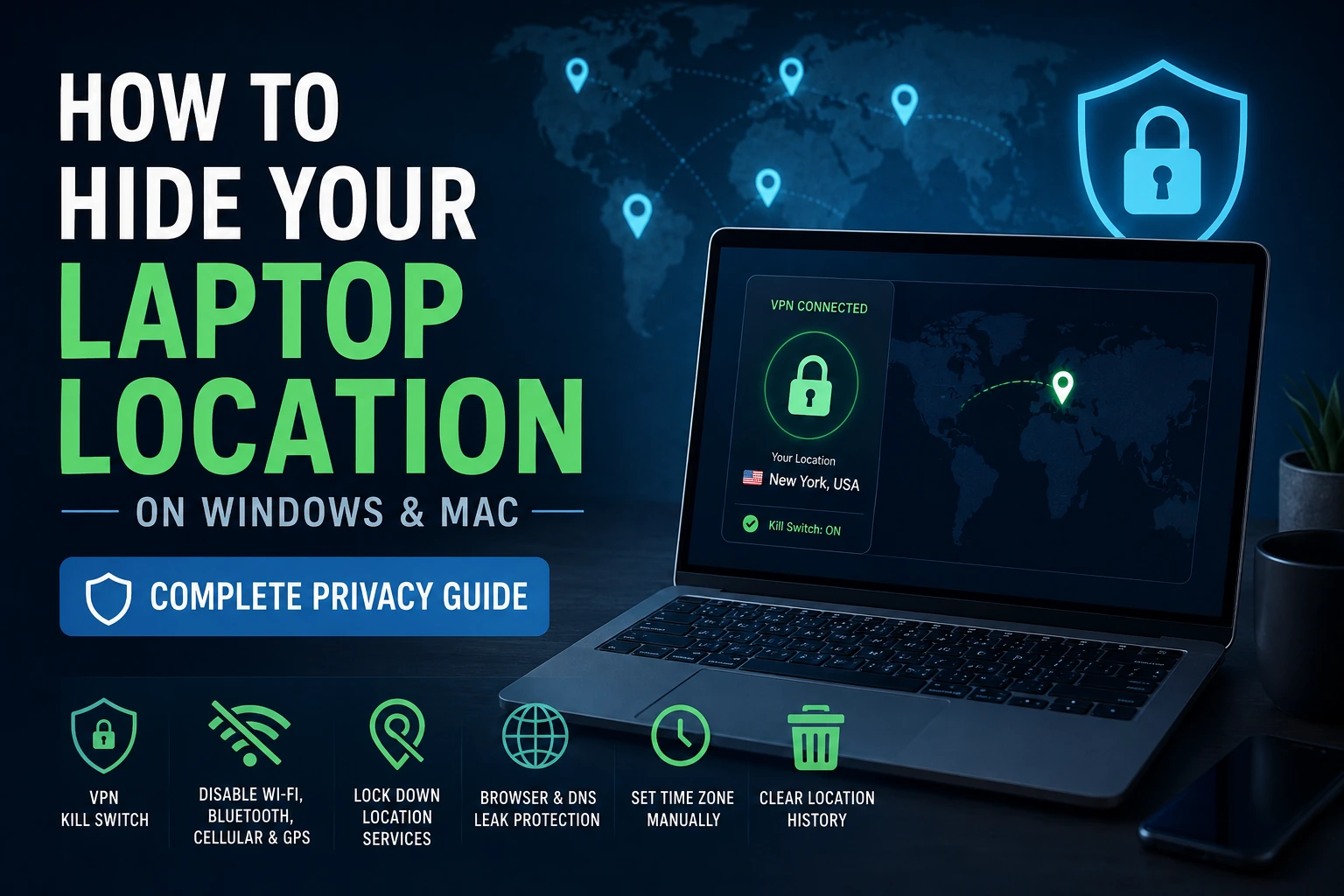
How to Hide Your Laptop Location on Windows & Mac | OurVPNs
A VPN can change your IP address, but that does not necessarily stop your laptop from discovering or revealing its physical location.
Windows and macOS have several independent ways to estimate where a computer is located. Depending on the hardware and settings, these may include nearby Wi-Fi access points, GPS or GNSS receivers, cellular networks, IP addresses, Bluetooth-related signals, browser geolocation requests, automatic time-zone detection, previously saved locations and cloud account activity.
That creates an important distinction:
Changing where your internet connection exits is not the same thing as preventing the computer from determining where it physically is.
For stronger laptop location privacy, both problems need to be addressed.
This guide covers the full process for Windows and Mac, including how to prevent future location detection, clean previously stored location information, disable unnecessary radios, configure a VPN and kill switch, reset browser permissions, clean Google, Microsoft and Apple account data, handle DNS and IPv6, check WebRTC, match time-zone settings and understand what information cannot simply be erased from the laptop.
How Can a Laptop Detect Your Physical Location?
Most people think location comes from only two places: GPS and the public IP address.
Modern computers have considerably more information available.
A laptop may potentially determine or expose location through:
Its public IPv4 or IPv6 address
Nearby Wi-Fi networks and their BSSIDs
GPS or GNSS hardware
LTE or 5G cellular hardware
Windows or macOS Location Services
Browser geolocation permissions
Bluetooth and nearby-device services
DNS routing
WebRTC network information
Automatic time-zone detection
System language and regional settings
Saved addresses and browser autofill
Google, Microsoft or Apple account activity
Find My and similar device-location services
Previously stored Significant Locations
Wi-Fi networks previously joined
Photos or files containing GPS metadata
Device-management or enterprise software
A VPN solves only some of these.
The goal of a strong location-privacy configuration is therefore to reduce the number of independent location signals available to the laptop while keeping its internet-facing network location consistent.
1. Start With the Network Location
The first layer is your internet connection.
Without a VPN, websites can normally estimate your approximate region from your public IP address. Even if precise browser geolocation is disabled, IP-based geolocation generally does not require the same permission prompt.
This is one reason a VPN is an important part of the setup.
If you are new to the concept, read our guide explaining what a residential VPN is before continuing.
Why a Residential IP Can Matter
Not every VPN IP is the same.
Traditional commercial VPN servers commonly exit through datacenter networks. A residential VPN instead routes the connection through an IP associated with a residential ISP.
The differences between these network types are important enough that we cover them separately in our guide to residential IP vs datacenter IP vs ISP IP.
There is another distinction people frequently confuse: dedicated, static and residential do not mean the same thing.
A dedicated IP describes exclusivity.
A static IP describes whether the address stays the same.
A residential IP describes the type of network to which the IP belongs.
See our full explanation of dedicated IP vs static IP vs residential IP if you want to understand how those characteristics differ.
For location consistency, an ideal connection generally has:
A stable geographic area
A consistent public IP
No unnecessary rotation between unrelated cities
Reliable DNS handling
IPv4 and IPv6 protection
A persistent kill switch
OurVPNs is built around dedicated residential connections designed to provide a consistent residential network endpoint rather than constantly moving a user between unrelated shared datacenter servers.
Use a Real VPN Kill Switch
A VPN that works 99% of the time can still expose the normal internet connection during the other 1%.
Imagine the tunnel disconnects for five seconds.
Without a kill switch, Windows or macOS may immediately send traffic through the normal internet gateway. Applications already running in the background can communicate before you even notice the VPN disconnected.
A proper kill switch should prevent ordinary internet access whenever the encrypted tunnel is unavailable.
Test it deliberately.
Connect the VPN.
Open several websites.
Then disconnect the VPN without disconnecting Ethernet.
If the browser simply continues loading websites through the normal ISP, the system does not have a complete kill switch.
Ideally, internet connectivity should stop until the VPN tunnel returns.
Router-Level VPN Protection
Another strong configuration is to establish the tunnel at a router or travel-router level.
The path then becomes:
Laptop → VPN router → encrypted VPN tunnel → residential gateway → internet
This has an advantage: the laptop does not need to establish the primary VPN tunnel itself.
However, router-level VPN protection does not stop Wi-Fi, GPS, Bluetooth or Location Services inside the laptop from learning where the machine physically is.
Network privacy and physical geolocation therefore remain separate problems.
2. WireGuard or OpenVPN?
Both protocols can work for this configuration.
WireGuard is lightweight, fast and generally reconnects quickly. OpenVPN has extremely broad compatibility and offers a different set of configuration options.
The protocol itself does not determine whether an IP is residential. That depends on the network through which the tunnel ultimately exits.
If you are deciding between them, read our full OpenVPN vs WireGuard comparison.
If you have already chosen WireGuard, our WireGuard Setup Guide covers the client configuration.
For location privacy, the more important requirements are that the tunnel remains active, its exit location remains consistent, DNS and IPv6 are handled correctly, and traffic cannot escape through the normal network if the tunnel fails.
3. Use Ethernet and Disable Wi-Fi
This is one of the most overlooked parts of laptop location privacy.
Many people assume:
"I'm not connected to Wi-Fi, so Wi-Fi can't reveal anything."
That is not necessarily true.
A Wi-Fi adapter can observe surrounding wireless networks. Those networks broadcast identifiers, including BSSIDs, that may be associated with geographic locations in positioning databases.
Firefox provides a particularly clear example. Mozilla currently states that, when a user permits location access, Firefox can use the device's IP address and information about nearby Wi-Fi access points to obtain an estimated location from Google Location Services.
Apple likewise says a Mac's location can be approximated using nearby Wi-Fi networks.
This means the following combination is technically possible:
VPN IP: Florida
Actual laptop: another country
Nearby Wi-Fi scan: networks associated with the laptop's actual area
A VPN does not automatically eliminate that contradiction.
Ethernet Is the Cleanest Practical Option
For maximum physical-location isolation, use:
Ethernet for internet connectivity and keep Wi-Fi completely disabled.
If the laptop does not have an Ethernet port, a USB-C or Thunderbolt Ethernet adapter works fine.
This allows the laptop to communicate without requiring its Wi-Fi radio.
Forgetting Wi-Fi Networks Is Not Enough
Deleting saved Wi-Fi profiles is useful, but it is not the same as disabling Wi-Fi.
A laptop does not need to have previously joined a nearby network in order to see that the access point exists.
Apple's current Wi-Fi settings distinguish between Known Networks, which the Mac has previously joined, and other nearby networks the radio can currently discover.
So:
Forget old networks for cleanup.
Disable the Wi-Fi radio for isolation.
4. Disable Wireless Hardware as Low in the System as Practical
There are several levels at which a wireless radio can be disabled.
For maximum assurance, the general order is:
Physical removal → BIOS/UEFI disabling → operating-system disabling
Option 1: Disable WLAN in BIOS or UEFI
Many Windows business laptops expose wireless controls in firmware.
Restart the laptop and enter the BIOS or UEFI configuration.
Look for categories such as:
Wireless
WLAN
WWAN
Bluetooth
Integrated Devices
I/O
Radio Control
GPS
GNSS
Mobile Broadband
If the BIOS allows WLAN, WWAN or Bluetooth to be disabled there, this is preferable to relying exclusively on a Windows toggle.
The device is then disabled before Windows starts.
Not every laptop provides these settings.
Option 2: Physically Remove a Replaceable Wireless Card
Some laptops have a replaceable M.2 Wi-Fi/Bluetooth module.
For unusually high-assurance environments, physically removing a user-serviceable wireless card provides the strongest assurance that software cannot reactivate it.
This is unnecessary for most users.
It also should only be attempted on laptops specifically designed with a removable wireless module.
Do not attempt to desolder integrated wireless hardware.
Modern MacBooks and many thin Windows laptops integrate networking components into the motherboard or another tightly integrated assembly. Trying to remove them can damage the machine.
Option 3: Keep the Radio Disabled in the Operating System
If firmware controls are unavailable, disable the radios in Windows or macOS and verify them before use.
This is the simplest option and is adequate for most personally controlled laptops.
5. Do Not Rely Only on Airplane Mode
Airplane Mode is useful as a convenient radio control, but it should not replace verification.
For an Ethernet-only configuration, individually confirm that:
Wi-Fi is off
Bluetooth is off
Cellular or WWAN is off
GPS/GNSS is disabled if present
The important question is not whether the airplane icon is visible.
The important question is whether every unnecessary radio is actually inactive.
6. Disable Bluetooth When You Do Not Need It
Bluetooth usually receives less attention than Wi-Fi, but it is another radio capable of interacting with the physical environment around the laptop.
For a restrictive configuration, keep Bluetooth off.
Use wired peripherals where practical:
Wired mouse
Wired keyboard
Wired headset
USB security devices
This is particularly relevant in Apple's ecosystem because Find My can use nearby Apple devices as part of its device-location network.
Bluetooth is not normally equivalent to GPS, but if the goal is minimizing physical environmental signals, an unused radio provides little benefit.
7. Disable Cellular, WWAN, GPS and GNSS Hardware
Not every laptop has a GPS receiver.
Some business laptops, however, contain:
LTE modems
5G modems
WWAN cards
eSIM hardware
GPS receivers
GNSS capability
Microsoft notes that Windows location can incorporate several network and radio sources, and Microsoft's broader privacy documentation specifically recommends considering the disabling of radio-based components such as Wi-Fi, Bluetooth, cellular or GPS when more comprehensive protection is desired.
If you do not need this hardware, disable it.
Prefer BIOS or UEFI disabling where supported.
Otherwise, disable the device from Windows and remove unnecessary cellular profiles.
Also disconnect external:
USB GPS receivers
USB LTE/5G modems
Cellular hotspots directly attached to the laptop
8. Windows 11: Disable Location Services
Open:
Settings → Privacy & security → Location
Turn Location services off.
Also review application permissions on the same page.
A useful detail here is that Windows privacy controls are not the entire story. Microsoft warns that some traditional desktop applications do not always behave like Store apps and that third-party services may still estimate location using signals such as Wi-Fi, Bluetooth or cellular.
That is why disabling the underlying radios is stronger than relying exclusively on software permissions.
9. Windows Clean-Slate Procedure
If the laptop has already been used somewhere else, simply disabling future location requests does not necessarily remove every old setting or account record.
A proper reset should address several different layers.
Remove or Review Windows Default Location
Windows can use a manually configured default location when a more precise location is unavailable.
Open:
Settings → Privacy & security → Location
Review the Default location section.
Remove an old address if one is configured and no longer appropriate.
Do Not Look for the Old Windows Location History Setting
Older guides tell users to clear a local Windows Location History.
That advice is now outdated on current Windows 11.
Microsoft removed the old Location History feature in a Windows 11 update released in 2025. Microsoft states that with its removal, location data is no longer saved locally through that feature and the corresponding setting was removed from the Location page.
So if you cannot find the old "Clear location history on this device" option, that may be completely normal on an updated PC.
Clear Microsoft Account Location Activity
Local Windows data and Microsoft-account data are different things.
Microsoft provides account-level location controls through its Privacy Dashboard. Microsoft says account-associated location information can be viewed under My activity → Locations and cleared there.
If the laptop has been signed into a Microsoft account, review this separately.
Clear Windows Activity History
Open:
Settings → Privacy & security → Activity history
Review and clear existing activity if you are preparing the device as a clean environment.
Activity History is not the same thing as precise geolocation, but old device activity can reintroduce context you may not want in a separated profile.
Forget Old Wi-Fi Networks
Open:
Settings → Network & internet → Wi-Fi → Manage known networks
Forget networks you no longer need.
Again, this removes stored profiles. It does not make nearby wireless networks invisible if Wi-Fi remains active.
Consider a Network Reset
For a particularly clean networking reset, Windows also offers:
Settings → Network & internet → Advanced network settings → Network reset
Use this carefully.
A network reset can remove network adapters and settings, including virtual adapters used by VPN software, so you may need to reinstall or reconfigure networking afterward.
It is best treated as an optional clean-slate step rather than a normal requirement.
10. macOS: Disable Location Services
Open:
Apple menu → System Settings → Privacy & Security → Location Services
Turn Location Services off.
Apple says macOS can approximate a Mac's location using data from nearby Wi-Fi networks.
If you cannot turn Location Services off completely, review every application individually and remove access wherever it is unnecessary.
Then open System Services and review location-dependent Apple features there as well.
11. macOS Clean-Slate Procedure
Mac users should pay particular attention to Significant Locations.
Clear Significant Locations
Open:
System Settings → Privacy & Security → Location Services → System Services → Details → Significant Locations
Review the entries and use Clear History.
Apple currently documents both removal of individual Significant Locations and clearing all Significant Location history.
Afterward, disable Significant Locations if you do not want the Mac rebuilding that information.
Clear Apple Maps Recents
Open the Maps app.
Locate Recents in the sidebar and choose Clear Recents.
Apple currently documents clearing recent searches on Mac separately from Significant Locations.
Review Find My Mac
Open:
System Settings → Apple Account → iCloud → Find My Mac
Find My exists specifically to help locate a device.
If your objective is minimizing device-location features, review whether you want it enabled.
Turning it off has a significant tradeoff: you lose an important stolen-device recovery function.
Forget Previous Wi-Fi Networks
Open:
System Settings → Wi-Fi
Review known networks and remove those that are no longer necessary.
This cleans old profiles but does not prevent the Mac from discovering nearby networks when Wi-Fi is active.
Modern Macs and Physical Wi-Fi Removal
Unlike some Windows laptops, modern Macs generally do not have a simple user-replaceable Wi-Fi card.
Hardware removal is therefore not a realistic recommendation.
For Macs, the practical approach is:
Ethernet + Wi-Fi off + Bluetooth off + Location Services off
12. Reset Browser Location Permissions
Operating-system location and browser geolocation are separate layers.
Websites use the browser's Geolocation API to request device location.
Your browser normally asks permission before sharing precise location, but permissions you granted months ago may still exist.
A clean browser should therefore have its permissions reset.
13. Chrome Clean-Slate Procedure
Open:
Chrome → Settings → Privacy and security → Site settings → Location
Set the default so websites cannot use your location unless you explicitly want to permit one.
Google's current Chrome documentation allows site permissions to be set to options such as one-time access, persistent access or never allow.
Then review existing allowed sites and remove old permissions.
Clear Old Chrome Data
Go to:
Settings → Privacy and security → Delete browsing data
For a complete browser reset, choose All time and review:
Browsing history
Cookies
Site data
Cached data
Site settings
Be aware that deleting cookies signs you out of many services.
Better Yet: Create a Clean Chrome Profile
If the laptop is intended to have a completely separated environment, creating a new Chrome profile can be cleaner than trying to sanitize years of accumulated browser state.
Do not enable Sync unless you actually want your old browsing environment copied into the new profile.
Browser synchronization can restore:
History
Saved addresses
Extensions
Passwords
Site settings
Autofill information
Other account-related browser data
A clean profile should actually remain clean.
14. Microsoft Edge Clean-Slate Procedure
Open:
Edge → Settings → Privacy, search, and services → Site permissions → Location
Block unnecessary location access and remove previously allowed websites.
Microsoft explains that Edge may receive location information from Windows and that Windows can incorporate nearby Wi-Fi access points, IP information and GPS data when available. Websites may also estimate approximate location from the public IP without asking Edge for precise-location permission.
Clear Edge Data
Open:
Settings → Privacy, search, and services → Clear browsing data
Choose All time if the goal is a clean reset.
Review:
Browsing history
Cookies and site data
Cached files
Autofill information
Site permissions
Microsoft notes that Edge's cookies and site data may include information such as sign-in state and location-related preferences, while site permissions include location permissions.
If Edge Sync is enabled, decide whether you want changes limited to this machine or propagated across synchronized devices.
15. Firefox Clean-Slate Procedure
Open:
Firefox → Settings → Privacy & Security
Find Permissions → Location → Settings.
Remove existing permissions.
Enable:
Block new requests asking to access your location
unless there are websites you specifically need to use with location access.
Firefox is particularly relevant to this article because Mozilla clearly documents that, after permission is granted, Firefox may use the computer's IP address and nearby Wi-Fi networks to obtain an estimated location.
Then clear old cookies, site data and browsing history if you are creating a clean environment.
16. Safari Clean-Slate Procedure
Open:
Safari → Settings → Websites → Location
For websites that do not require location, choose Deny.
Safari supports Ask, Deny and Allow location settings on a per-site basis.
Clear Safari History
Use:
Safari → History → Clear History
Clear Website Data
Then open:
Safari → Settings → Privacy → Manage Website Data
Remove individual sites or choose Remove All.
Apple states that this area contains cookies and other website data stored on the Mac.
17. Google Accounts Need Their Own Cleanup
This is one of the most important parts of a proper clean-slate procedure.
Signing into Google does not mean Google automatically exposes the home address stored in your account to every website.
However, signing into an old Google account reconnects the laptop to an account environment that may contain years of:
Search activity
Google Maps usage
Timeline information
General-area IP activity
Saved places
Home and Work addresses
Browser synchronization
Device activity
Location-sharing settings
For maximum separation, avoid automatically signing a clean browser profile into a Google account containing unrelated historical location information unless you actually need that account.
Review Google Timeline
Google's current Timeline system stores visits and routes for eligible signed-in devices when the feature is enabled.
Review Timeline and delete old information if appropriate.
Importantly, Google explicitly warns that deleting Timeline does not necessarily delete every other type of location information associated with your Google activity. General-area and IP-derived location may still exist in other activity systems.
Review Web & App Activity
Open your Google Account's Data & privacy controls and review Web & App Activity.
Google states that Web & App Activity can contain information about a device's general area and IP address.
Review Search Services History
Google has also been transitioning some Search-related history controls to Search Services History.
Review it alongside Web & App Activity rather than assuming Timeline is the only location-related setting.
Review My Activity
Use Google My Activity to review and delete information you do not want associated with the account.
Google currently allows manual deletion and automatic deletion for several account activity categories.
Review Home and Work Addresses
If an account has a hard-coded Home or Work address that is no longer appropriate for the environment you are creating, review it.
Again, a stored address is not the same thing as live geolocation.
But if the objective is building a clean, internally consistent account environment, old location-related profile information should not be ignored.
18. Microsoft Account Cleanup
A Microsoft account may likewise contain information that is separate from the physical Windows installation.
Review:
Microsoft Privacy Dashboard
Location activity
Recent sign-in activity
Edge synchronization
Browsing history stored in the Microsoft account
Microsoft allows users to review and clear location information associated with personal Microsoft accounts through its privacy dashboard.
Edge browsing information may also exist both locally and in Microsoft's cloud depending on synchronization and personalization settings.
19. Apple Account and iCloud Cleanup
Apple synchronization can connect the laptop's environment with other devices using the same Apple Account.
Review whether you actually need:
Safari synchronization
iCloud Keychain
Find My Mac
Maps-related synchronization
Shared device features
Cross-device browser activity
There is nothing inherently unsafe about synchronization.
The issue is separation.
If you are trying to create a fresh location context, automatically importing years of unrelated device history works against that objective.
20. Review Saved Addresses and Autofill
Browsers often contain location information that has nothing to do with GPS.
Examples include:
Home addresses
Shipping addresses
Billing addresses
Employer addresses
Previously entered form data
Review Chrome, Edge, Safari and Firefox autofill data.
A stored address generally does not tell the browser where the laptop currently sits, but it is still part of the overall identity and location context associated with that profile.
21. Set the Time Zone Manually
Time zone is not precise geolocation, but websites can read the computer's configured time zone using standard browser APIs.
JavaScript's Intl.DateTimeFormat().resolvedOptions() can expose the runtime's default time zone.
For example:
Public IP: New York
System time zone: Asia/Tokyo
This does not reveal GPS coordinates, but it creates an unnecessary contradiction.
Windows
Open:
Settings → Time & language → Date & time
Disable automatic time-zone detection.
Manually choose the time zone corresponding to the intended location.
You can still allow the computer's clock itself to synchronize automatically. Accurate clock time is not the problem.
macOS
Open:
System Settings → General → Date & Time
Turn off automatic time-zone selection based on current location.
Select the destination time zone manually.
22. Review Language, Region and Locale
The browser can expose other regional information as well.
Examples include:
Preferred language
Locale
Calendar format
Number format
Measurement units
Time zone
This information normally does not identify an exact physical location.
A Spanish-speaking user can obviously live in the United States, and an English-speaking user can live in Mexico.
The point is simply to avoid unnecessary contradictions caused by an old device configuration.
Review:
Windows: Settings → Time & language → Language & region
macOS: System Settings → General → Language & Region
Do not blindly change everything. Make the environment internally sensible.
23. Be Careful With Phone-to-Laptop Integration
Phones generally have much stronger physical-location capabilities than laptops.
A modern smartphone may combine:
GPS
Wi-Fi
Cellular towers
Bluetooth
Motion sensors
Location-aware apps
If the laptop is intended to remain a separated environment, unnecessary phone integration increases the connections between those two environments.
Review features such as:
Windows Phone Link
Apple Continuity
Bluetooth pairing
Shared browser profiles
Shared cloud accounts
Message synchronization
Shared location services
A service provider may possess information from both devices even if a random website on the laptop cannot directly access the phone's GPS coordinates.
24. Check Photos and Files for GPS Metadata
Another location leak has nothing to do with VPNs at all.
Photos taken by phones and some cameras can contain GPS coordinates in EXIF metadata.
If such a file is uploaded from the laptop, its metadata may reveal where the photo was taken.
The same general principle applies to documents that contain:
Author details
Organization names
Location fields
Embedded metadata
If location privacy matters, inspect metadata before uploading personal files.
Remember that changing your VPN IP does not rewrite metadata already stored inside a file.
25. Prevent DNS Leaks
DNS translates domain names into IP addresses.
If your web traffic goes through the VPN but DNS requests go directly to the local ISP, some network activity is escaping the intended path.
A proper VPN configuration should route DNS appropriately.
After connecting, test which DNS resolver the laptop is actually using.
If the resolver unexpectedly belongs to the local physical ISP, investigate the configuration.
Modern browsers may also use DNS-over-HTTPS.
Encrypted DNS is valuable, but the connection to the encrypted resolver should still travel through the VPN rather than bypassing it.
26. Test IPv6 Separately
Many networks provide both IPv4 and IPv6.
Checking only your IPv4 address is therefore not enough.
A poorly configured tunnel can theoretically route IPv4 through the VPN while leaving another IPv6 path available.
The correct solution is either:
Tunnel IPv6 properly
or
Disable IPv6 where the VPN configuration does not support it
Do not simply assume IPv6 is protected because an IPv4 leak test looks correct.
27. Understand WebRTC
WebRTC is used for real-time browser communication, including calls, conferencing and peer-to-peer applications.
During WebRTC negotiation, ICE candidates can contain network address information.
MDN specifically warns that ICE candidate addresses can expose network information and can potentially reveal information related to location, topology and fingerprinting.
A properly configured VPN should prevent WebRTC from unexpectedly exposing the underlying public ISP address.
Test it separately after connecting.
Completely disabling WebRTC can break:
Google Meet
Microsoft Teams
Discord calls
Browser video calling
Other real-time communications
So test first rather than disabling it blindly.
28. Restrict Browser Local-Network Access
Modern browsers increasingly treat access to the local network as a privacy-sensitive permission.
Chrome now exposes Local network access controls for websites. Google says this permission governs whether sites can find and connect to devices or services on the local network.
Unless a website genuinely needs to access something such as a:
Printer
Chromecast
Router
NAS
Local application
deny the request.
A normal public website usually has no reason to inspect devices around the laptop.
29. Wi-Fi MAC Randomization Helps, but It Does Not Solve Wi-Fi Geolocation
When Wi-Fi must be used, private or randomized MAC addresses can reduce persistent tracking by networks.
However, MAC randomization solves a different problem.
It can make it harder for wireless networks to recognize the laptop by one permanent hardware address.
It does not prevent the laptop itself from observing nearby Wi-Fi access points.
Therefore:
MAC randomization is helpful when Wi-Fi is unavoidable.
Wi-Fi off is still stronger for preventing Wi-Fi-assisted physical geolocation.
30. What Does _nomap Do?
This is an advanced measure for Wi-Fi networks you own.
Google maintains Wi-Fi access-point information as part of Google Location Services.
Google provides an official opt-out mechanism for an access point.
Change the Wi-Fi network name so the SSID ends in:
_nomap
For example:
MyHomeNetwork_nomap
Google states that this naming convention opts the access point out of inclusion in Google's Location Services.
There are several important limitations.
It only applies to an access point you control.
You cannot rename:
Neighboring routers
Hotel networks
Airport networks
Café networks
Other nearby access points
It also should not be interpreted as a universal opt-out from every location database operated by every company.
The more broadly useful laptop-side measure remains:
Turn Wi-Fi off.
31. Review Browser Extensions and Installed Applications
Browser extensions and desktop software create another potential layer.
Review extensions and remove anything you do not actively use.
Pay special attention to extensions involving:
Weather
Shopping
Maps
Local search
Travel
Security
Network utilities
Proxy or VPN services
Also review installed desktop applications.
Microsoft specifically notes that some traditional desktop applications may interact with privacy-sensitive information differently from modern Store apps and can potentially use signals outside standard Windows privacy controls.
A clean location environment benefits from having fewer unnecessary applications installed.
32. Startup and Wake From Sleep Matter
Do not test the setup only after everything has stabilized.
Consider what happens when the laptop:
Starts
Restarts
Wakes from sleep
Loses Ethernet briefly
Loses the VPN
Reconnects the tunnel
Updates the VPN application
Switches networks
A laptop may launch dozens of background services immediately after startup.
If the normal internet connection becomes available before the VPN does, those services can potentially communicate through the underlying ISP.
This is another reason a persistent kill switch matters.
Test the system from a complete restart.
33. Traveling Makes the Setup More Complicated
Hotels, airports, short-term rentals and coworking spaces introduce additional variables.
These may include:
New Wi-Fi environments
Captive portals
Different ISPs
Local DNS
Network restrictions
Hotel login pages
For a laptop configured around location privacy, a travel router can be extremely useful.
One possible architecture is:
Hotel internet → travel router → encrypted VPN tunnel → residential gateway
Then:
Laptop → Ethernet → travel router
The travel router interacts with the temporary local network while the laptop remains wired behind it.
If you travel frequently, our broader Digital Nomad Connectivity Guide covers more of the connectivity side of this setup.
34. Managed Work Laptops Are Different
Everything in this guide assumes that you control the computer.
An organization-managed computer can contain software and policies with privileges beyond what the ordinary user sees.
Examples may include:
MDM profiles
Endpoint security software
Corporate VPN agents
Inventory tools
Remote-management tools
Device-compliance systems
Location policies
Turning off a setting in Windows or macOS does not guarantee that privileged management software follows the same rules.
If Windows says:
Some settings are managed by your organization
or macOS contains organization-installed management profiles, treat the device as a managed environment.
A consumer VPN cannot guarantee control over software operating with administrative or management privileges on the same machine.
35. The Three Types of Location Data You Need to Reset
A proper "clean slate" requires understanding that location information can exist in three different places.
Local Device Data
This is information stored on the laptop itself.
Examples include:
Browser cookies
Site permissions
Significant Locations
Saved Wi-Fi networks
Apple Maps Recents
Browser autofill
Default Location
Cached website data
Local account settings
Most of this can be directly cleaned from the computer.
Cloud Account Data
This exists in services associated with the computer.
Examples include:
Google Timeline
Google Web & App Activity
Search Services History
Microsoft Location Activity
Edge Sync
Apple/iCloud information
Browser synchronization
Cleaning the laptop does not necessarily clean these systems.
They need to be reviewed separately.
Third-Party Historical Data
This is information that another party may already have received.
Examples might include:
Websites previously visited
Online services
ISP records
Account-provider logs
Security systems
Wi-Fi geolocation databases
Deleting browser history does not reach backward in time and erase copies already collected elsewhere.
A realistic clean-slate process therefore means:
Clean the local device, clean the accounts you control, and stop creating unnecessary new location signals going forward.
36. Complete Clean-Slate Procedure for a Previously Used Laptop
If you want to repurpose an existing computer into a location-isolated setup, this is the order I would use.
Step 1: Disconnect From Unnecessary Wireless Networks
Use Ethernet if available.
Disable Wi-Fi, Bluetooth and cellular radios.
Step 2: Enable and Test the VPN
Connect to the intended residential endpoint.
Verify the public IP and test the kill switch.
Step 3: Disable OS Location Services
On Windows:
Settings → Privacy & security → Location
On Mac:
System Settings → Privacy & Security → Location Services
Step 4: Clear OS Location-Related Data
Windows users should review:
Default Location
Microsoft Privacy Dashboard
Activity History
Known Wi-Fi networks
Mac users should review:
Significant Locations
Apple Maps Recents
Find My Mac
Known Wi-Fi networks
Step 5: Reset Browsers
For every browser you intend to keep:
Remove location permissions
Clear cookies and site data
Clear old browsing history if appropriate
Remove irrelevant extensions
Review autofill addresses
For maximum separation, create a new browser profile.
Step 6: Clean Cloud Accounts
Review:
Google Timeline
Google Web & App Activity
Google Search Services History
Microsoft account location activity
Edge Sync
Apple/iCloud synchronization
Step 7: Disable Automatic Time-Zone Geolocation
Choose the intended time zone manually.
Step 8: Review Region and Language
Remove old regional configuration that creates obvious contradictions.
Step 9: Test DNS
Make sure DNS is not unexpectedly exiting through the underlying ISP.
Step 10: Test IPv4 and IPv6
Verify both network families.
Step 11: Test WebRTC
Make sure browser communication does not reveal an unintended public network address.
Step 12: Restart the Laptop
Test again from a complete reboot.
Step 13: Test Sleep and Wake
Verify that the laptop does not temporarily regain unprotected internet access.
Step 14: Test the VPN Failure Scenario
Disconnect the tunnel intentionally.
Internet access should fail rather than silently returning to the physical ISP.
Step 15: Repeat the Tests After Major Updates
Operating-system, browser and VPN updates can change networking or permissions.
Retest periodically.
37. The Strongest Practical Configuration
For a personally controlled laptop, a strong practical architecture looks like this:
Ethernet-only laptop → kill-switch-protected VPN → dedicated residential gateway → internet
On the laptop:
Wi-Fi is off
Bluetooth is off unless required
Cellular/WWAN is disabled
GPS/GNSS is disabled if present
Location Services are off
Previously stored location data has been cleared
Browser geolocation is blocked
The browser uses a clean profile
Old cloud-account location history has been reviewed
Automatic time-zone geolocation is disabled
DNS, IPv6 and WebRTC have been tested
The public IP remains consistently associated with the intended gateway
This separates two fundamentally different problems.
The VPN controls where internet traffic exits.
Device privacy controls reduce the laptop's ability to independently determine its physical surroundings.
Neither replaces the other.
Complete Laptop Location Privacy Checklist
Before relying on the configuration, verify all of the following:
Residential VPN connected
Stable public IP
VPN kill switch enabled
Internet stops when VPN disconnects
IPv4 tested
IPv6 tested
DNS tested
WebRTC tested
Wi-Fi disabled
Ethernet used where practical
Bluetooth disabled when unnecessary
Cellular/WWAN disabled
GPS/GNSS disabled if present
BIOS/UEFI wireless controls disabled where practical
Windows or macOS Location Services disabled
Windows Default Location reviewed
Microsoft cloud location activity reviewed
macOS Significant Locations cleared
Apple Maps Recents cleared if appropriate
Find My settings reviewed
Old Wi-Fi networks forgotten
Browser geolocation permissions removed
Browser cookies and old site data reviewed
Browser autofill addresses reviewed
Google Timeline reviewed
Google Web & App Activity reviewed
Google Search Services History reviewed
Microsoft account activity reviewed
Apple/iCloud synchronization reviewed
Automatic time-zone location detection disabled
Time zone configured appropriately
Language and region settings reviewed
Unnecessary phone integration disabled
Local-network browser permissions reviewed
File and photo metadata checked before sharing
Browser extensions reviewed
Startup tested
Sleep/wake tested
VPN failure tested
Frequently Asked Questions
Can a laptop know my real location while I am using a VPN?
Yes.
A VPN changes network routing and the public IP seen by internet services.
The laptop may still have access to other location sources such as nearby Wi-Fi networks, GPS, cellular hardware, operating-system Location Services or browser permissions.
That is why a VPN alone is not a complete physical-location privacy solution.
Does a VPN hide GPS location?
Normally, no.
A VPN controls internet routing.
It does not normally rewrite GPS or GNSS coordinates produced by physical location hardware.
Can Wi-Fi reveal my physical location?
Potentially, yes.
Nearby access points can be used as inputs to Wi-Fi-based positioning systems.
Apple says Mac location can be approximated from nearby Wi-Fi networks, and Firefox documents use of nearby wireless access points when location access is permitted.
If I Use Ethernet, Should I Still Turn Wi-Fi Off?
For ordinary internet privacy, it may not be necessary.
For maximum resistance to Wi-Fi-assisted physical geolocation, yes.
Using Ethernet gives the laptop internet connectivity while allowing Wi-Fi to remain completely disabled.
Should I Physically Remove My Wi-Fi Card?
Usually not.
If the laptop exposes WLAN controls in BIOS or UEFI, disabling the radio there is a much more practical option.
Physical removal is mostly useful for machines with a simple user-replaceable Wi-Fi card when unusually high assurance is required.
Can I Remove the Wi-Fi Card From a MacBook?
On modern MacBooks, not realistically.
The wireless hardware is highly integrated rather than a normal user-replaceable M.2 card.
Keep Wi-Fi disabled instead.
Does Airplane Mode Stop All Location Tracking?
Do not assume that one toggle solves every location source.
Verify Wi-Fi, Bluetooth, cellular and GPS-related hardware individually.
Location can also come from the public IP or previously stored account information, neither of which is conceptually solved by Airplane Mode alone.
Can a Browser Know My Location if Windows Location Services Are Off?
It may still estimate an approximate area from the public IP.
Additionally, Microsoft warns that third-party software can use signals outside ordinary Windows location controls.
Does Incognito or Private Browsing Hide My Physical Location?
No.
Private browsing mainly changes how browser history and site data are retained.
It does not automatically:
Change your public IP
Disable Wi-Fi
Disable GPS
Turn off Location Services
Change your time zone
Can WebRTC Reveal My Real IP?
WebRTC can expose network address information through ICE candidates, which is why it deserves its own leak test.
A properly configured VPN should prevent an unintended public ISP address from escaping.
Does DNS Reveal My Location?
DNS usually does not provide exact coordinates, but a DNS leak can reveal that requests are leaving through infrastructure associated with the underlying network or ISP.
DNS should therefore be included in your VPN testing.
Can IPv6 Leak My Location?
If IPv6 has a route outside the VPN, it may expose another public network address.
Always test both IPv4 and IPv6.
Does My Time Zone Reveal My Location?
Not precisely.
But websites can retrieve the runtime's configured time zone using standard browser functionality.
A time zone that strongly contradicts the VPN location can create an unnecessary inconsistency.
Does Signing Into Google Reveal My Home Address?
Not directly to every website.
However, an existing Google account may contain historical activity, Maps usage, addresses and other location-related context.
For a strongly separated browser environment, avoid importing unnecessary old account history.
Does Deleting Google Timeline Delete Everything?
No.
Google specifically warns that other settings such as Search Services History or Web & App Activity may retain other location-related information even after Timeline data is deleted.
What Does _nomap Do?
If you own a Wi-Fi access point, ending the SSID with _nomap tells Google not to include that access point in Google Location Services.
For example:
HomeWiFi_nomap
Google documents this as its official access-point opt-out method.
It does not guarantee removal from every location database operated by every company.
Is a Residential VPN Better for Location Consistency?
A residential VPN can provide an IP associated with a residential ISP rather than a conventional datacenter.
For a user who wants the same network location consistently, a dedicated residential endpoint also avoids constantly rotating among unrelated VPN servers.
See our guide to choosing a residential VPN for a deeper explanation of what matters when comparing services.
Is a VPN Enough by Itself?
No.
The VPN solves the network-exit layer.
Physical-location sensors, operating-system location services, browser permissions, account histories and system settings are separate layers.
A complete setup addresses both.
Final Thoughts
Hiding a laptop's physical location is not one setting and it is not one piece of software.
A VPN solves an important part of the problem by controlling where internet traffic exits.
But Windows and macOS may still have other ways to determine where a laptop physically sits, including nearby Wi-Fi networks, GPS or GNSS hardware, cellular connections, Location Services, browser permissions and previously collected account information.
The strongest practical approach is therefore to make the laptop network-location consistent while minimizing its access to physical-location signals.
Use Ethernet whenever practical.
Disable unnecessary radios.
Disable Windows or macOS Location Services.
Clear previously stored local and cloud location information.
Use a clean browser profile.
Disable automatic time-zone geolocation.
Test DNS, IPv6 and WebRTC.
And use a VPN configuration that does not permit internet traffic to escape when the encrypted tunnel is unavailable.
For the network portion of this setup, OurVPNs dedicated residential VPN connections are designed around a consistent residential endpoint rather than a rotating pool of ordinary datacenter VPN servers.
You can also start a free 3-day OurVPNs trial to test the connection with your own setup.